Retire and Unretire a Study
When a study is completed, it should be retired - as a part of the decommissioning process.
To Retire a Study:
1. Go to Studies List → Study tile of a study that you want to retire.
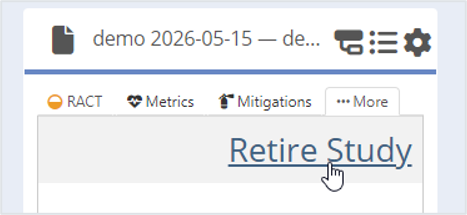
2. On the Study Overview Tile select More….
3. Click Retire Study.
4. Provide Change Rationale in a free text area in the pop-up window.
5. Click Retire in the popup window.
NOTE: Live study can’t be retired.
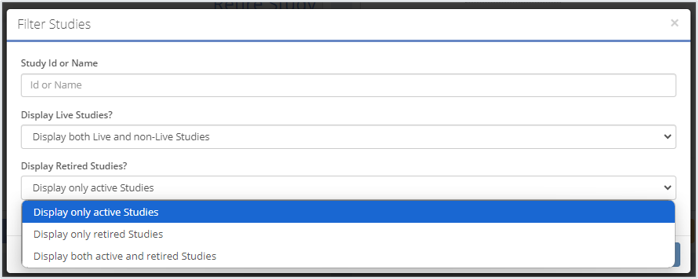
Retired Study are displayed on the Studies List page if the filter is set up to show retired studies. By default all retired studies are hidden.
NOTE: An authorized user can see the Retired Study Data in Read-Only mode in the MyRBQM Portal for 1 month after study retirement (if another time period is not set in the study configuration).
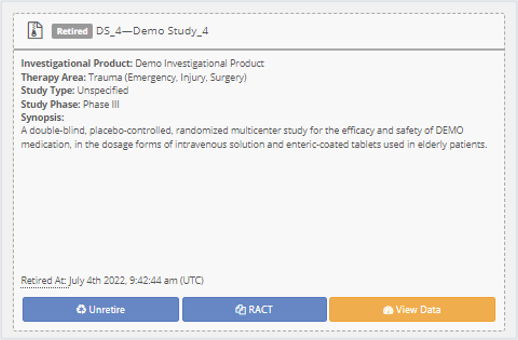
MyRBQM® Portal users can unretire a study.
To Unretire a study:
1. Go to Filter and filter for Retired Studies.
2. Find the Study you want to unretire (it is also possible to set the Study ID or name in the Filter).
3. On the Study Overview Tile, click Unretire.
4. Set up the filter to see Active Studies.