
Assign a User to a User Group
To assign or remove a user to/from a group:
- Navigate to the relevant study and select in the header menu Settings → Study Settings → User Groups
- In the Select by switcher, click Groups.
- Click the group's name in the list of groups below.
- In the right-hand list select the users who should belong to the group by clicking their names, so they appear under Users that belong to this Group highlighted in yellow.
- Click Save Changes.
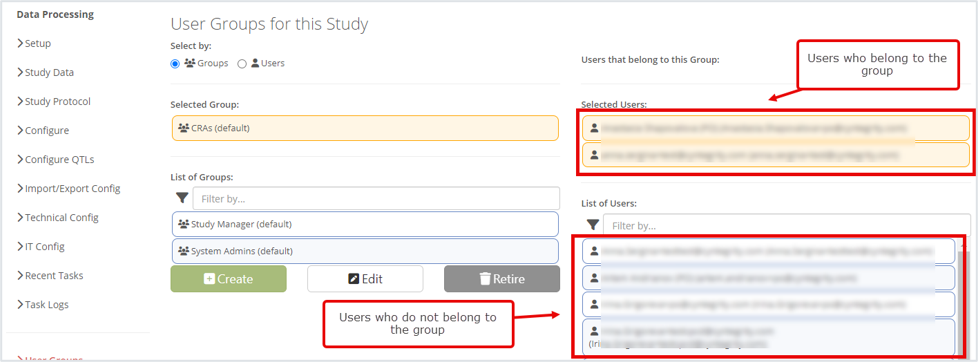
Groups can also be managed from the user's side instead:
1. In the Select by switcher, select Users.
2. Select a user from the list of users below.
3. The right-hand list shows the groups the user belongs to (highlighted in yellow) and the groups he doesn't belong to (shown in white).
4. To add the user to a group they're not currently part of, select it from the list of groups shown in white by clicking on it.