
Updating Issue Status in the Compliance & Data Quality Check Module
The Compliance & Data Quality Check module includes an Issue Status Update workflow that allows users to review detected issues and manage their follow-up actions. The Update Status functionality ensures that each issue progresses through a clear and traceable review cycle.
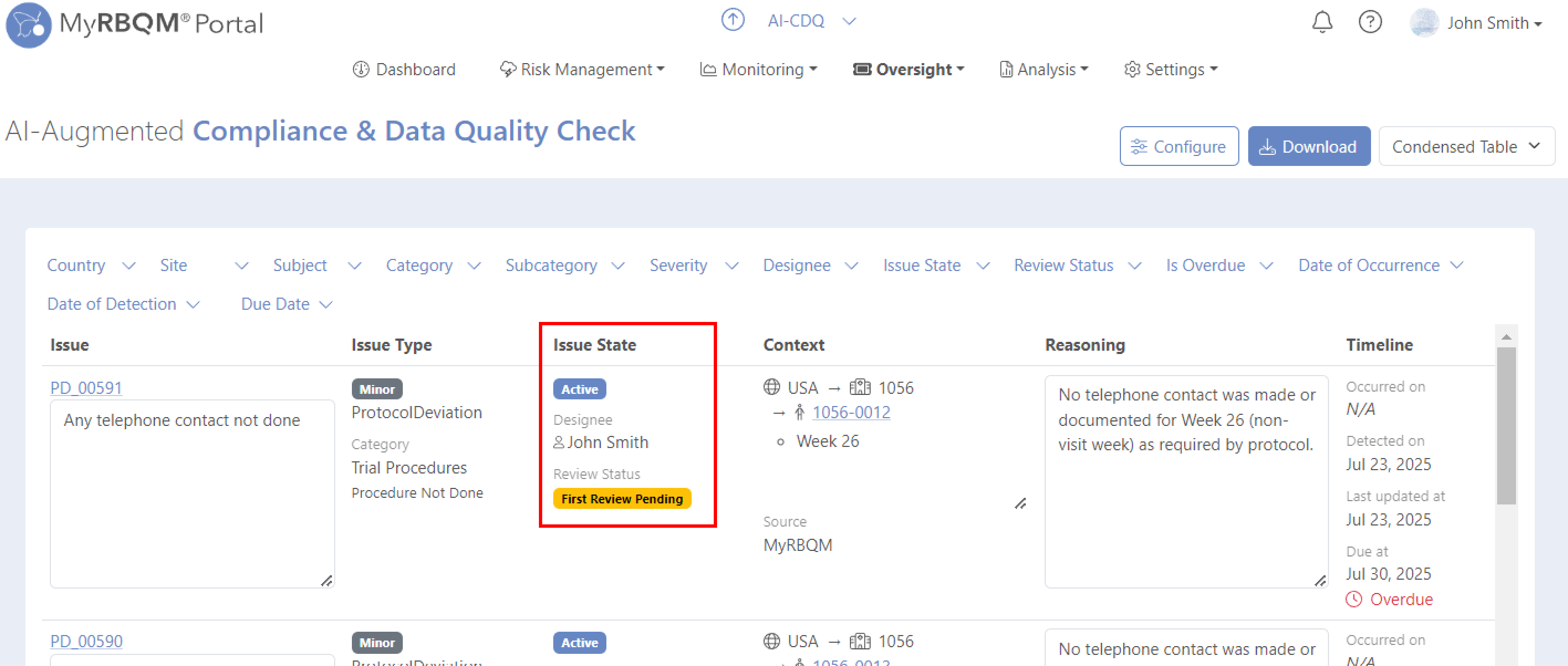
The current status of each identified issue can be viewed on the Issues List page (as shown in the image below). When a new issue is created in the system, it automatically receives the state: Active and the status: First Review Pending. The assigned default designee is notified that a new issue requires attention.
You can change the default designee for new issues by clicking Configure on the Issues List page. The functionality is available with the assigned privilege CDQ - Configure Workflow.
All users who have access to the module and the assigned privilege CDQ - Status Change are authorized to update an issue status. This can be done individually for each issue or in bulk.
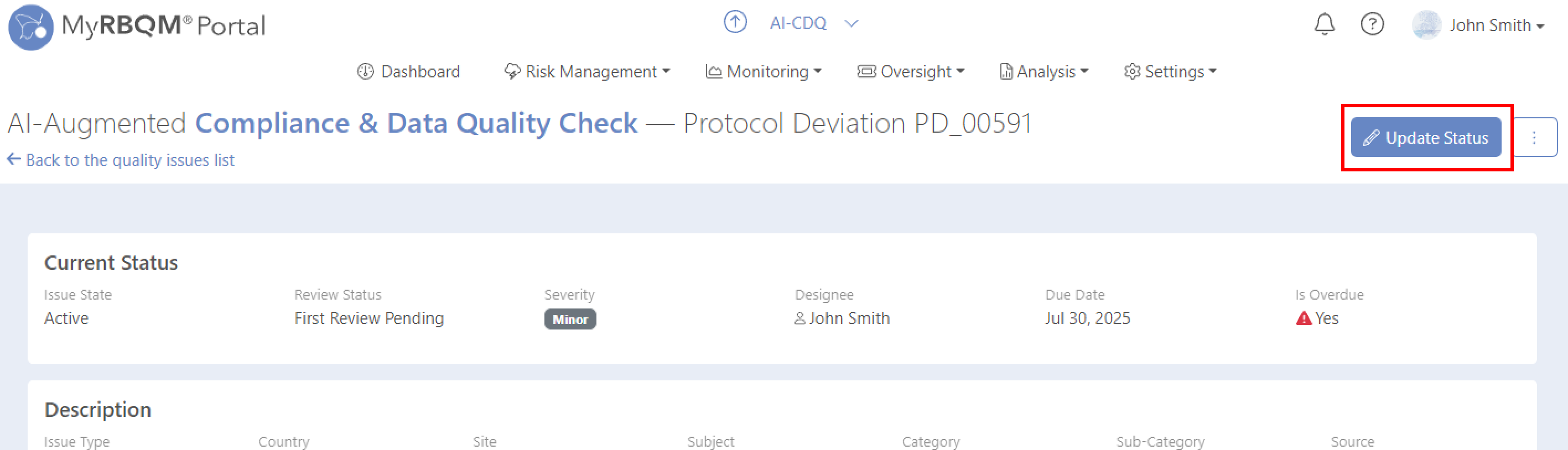
To update a single issue status, open the Issue Details page by clicking the issue ID in the first column.
When you click Update Status on the Issue Details page, a Status Update window opens. This window displays the issue’s current state and review status, and allows you to define the next steps.
Current Status Overview
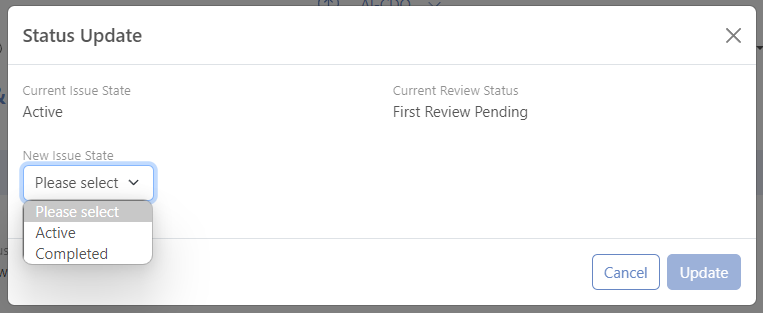
At the top of the dialog, you will see two read-only fields:
- Current Issue State – shows whether the issue is currently Active or Completed.
- Current Review Status – displays the latest review decision associated with the issue.
These fields help you understand the issue’s present position before making any changes.
Choosing the New Issue State
The first editable field is New Issue State, where you select whether the issue should be moved to Active or Completed.
- Use Active when the issue still requires attention or additional review.
- Use Completed when the issue is fully resolved or accepted and no further action is needed.
Updating Active Issues
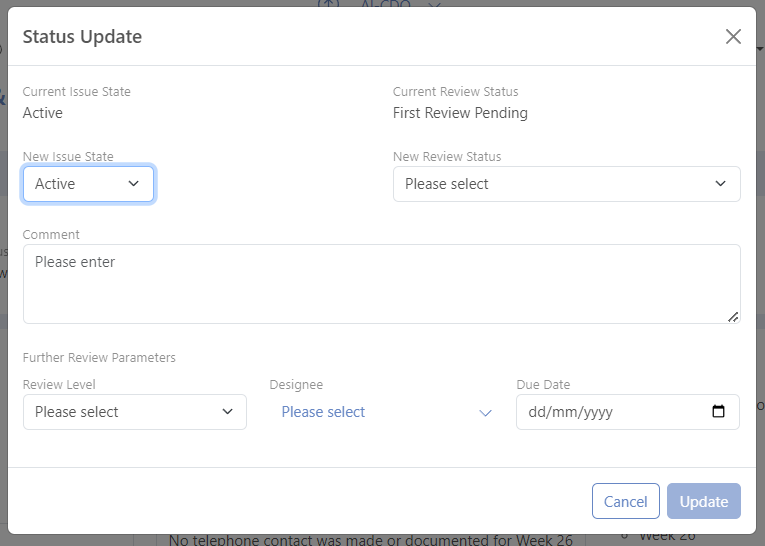
If you set the New Issue State to Active, several additional fields appear. These fields allow the reviewer to define the next steps in the follow-up process:
- New Review Status – document your decision on the issue by selecting one of the available review statuses: Reviewed, Verified, or Rejected .
- Comment – provide a mandatory explanation for the update.
In addition, the Further Review Parameters section becomes visible. This section helps assign responsibility and timelines for the next review stage:
- Review Level – select the appropriate review level (Next, Final, Sponsor).
- Designee – assign the next reviewer by selecting a user from the study’s list of individual users (user groups are not supported yet). Make sure that selected user was given access to the module and granted the privileges.
- Due Date – select the deadline for the next review.
These parameters ensure that every Active issue has a defined owner and a clear timeline for resolution.
Completing an Issue
If you set the New Issue State to Completed, a simplified set of fields is shown:
- New Review Status – choose either Verified or Rejected.
- Comment – provide the mandatory explanation for completing the issue.
This ensures that the final disposition of the issue is clearly documented.
To perform a bulk update, select all issues in the overview table that require a status change, then click Change Status in the section that appears above the table.

In the Status Update window, set the new parameters similarly to editing a single issue. The newly set parameters will be applied to all selected issues, regardless of their status.

Bulk status update is only available in the Full Table and Condensed Table display modes.
Every time you perform a Status Update, the action is recorded in the study audit trail under the action name Update Compliance & Data Quality Issue Status. This ensures full traceability of all decisions and changes made to the issue.
In addition, each successful status update automatically appears in the Issue Change History section on the Issue Details page. This allows users to easily track the progression of the issue, understand who performed each update, and review how the issue evolved over time.
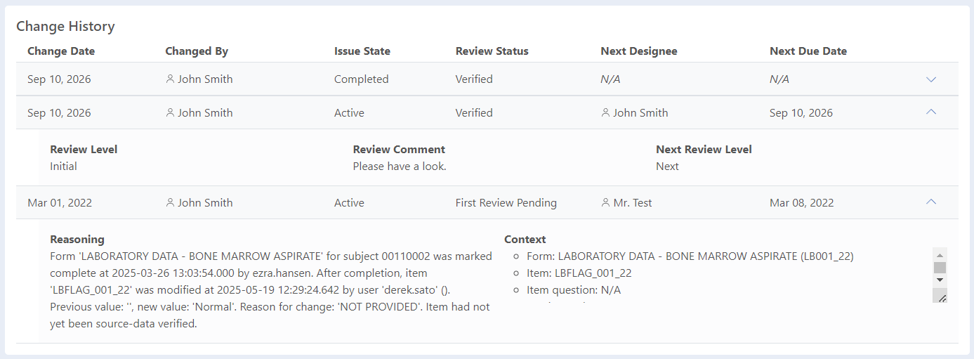
This streamlined workflow ensures that every update to an issue is consistent, auditable, and aligned with the study’s review processes.