How to Enable and Access the Compliance & Data Quality Check module
To use the Compliance & Data Quality Check functionality:
- it must first be enabled in the current study configuration by Cyntegrity team.
- then in your Study Settings by your Administrator (This functionality is disabled in MyRBQM by default).
- a privilege CDQ - Access Compliance and Data has to be granted by your Administrator.
To enable the Compliance & Data Quality Check if it is setup in your study configuration:
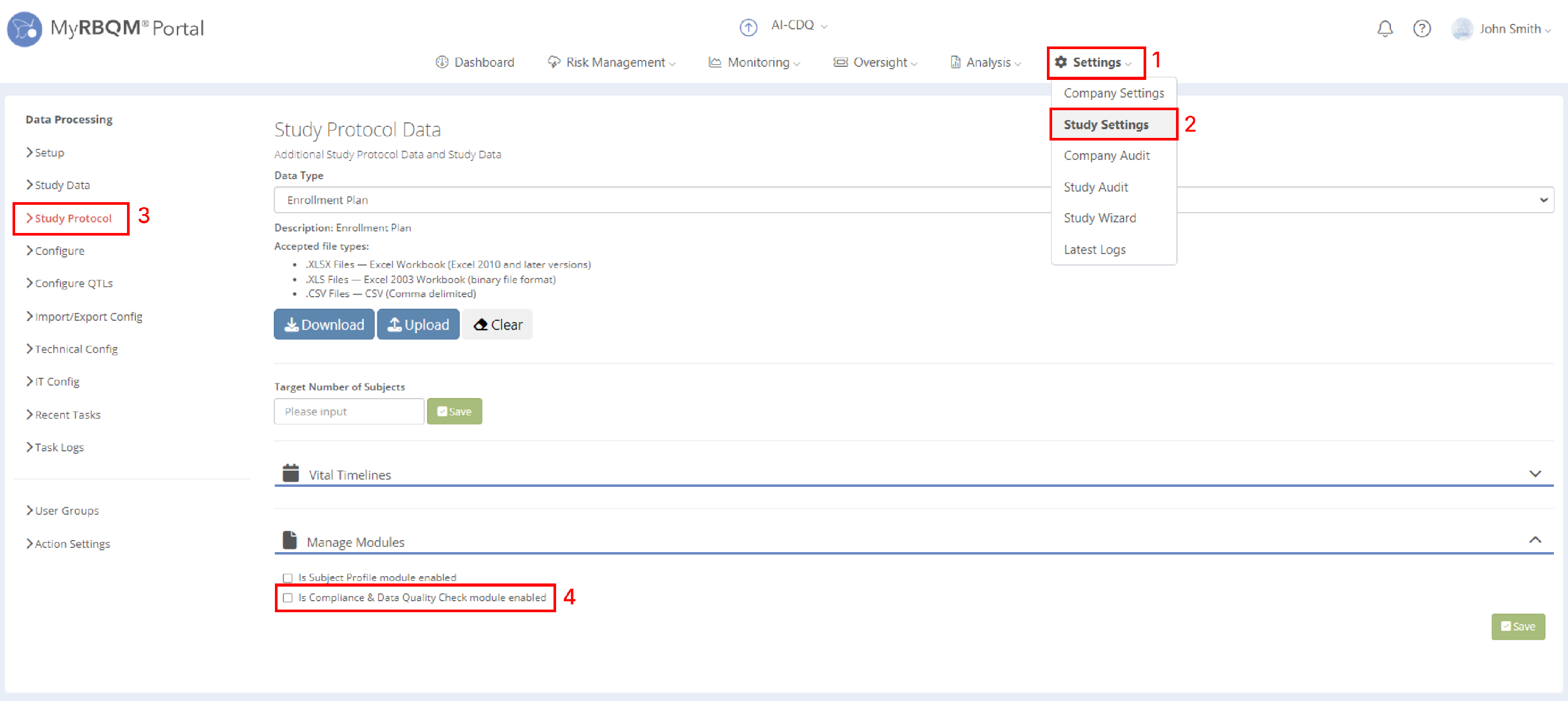
Navigate to Study Settings → Study Protocol tab → Manage Modules section → and check the box labeled Is Compliance & Data Quality Check module enabled (see below).
Carefully read and accept the terms of use before enabling the Compliance & Data Quality Check module.
After accepting the terms of use the system will ask you to select a default designee who will be responsible for newly created issues.
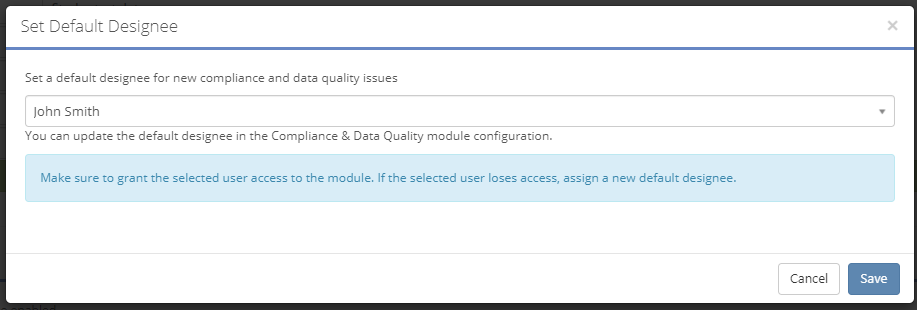
Don't forget to save changes after selecting the default designee:

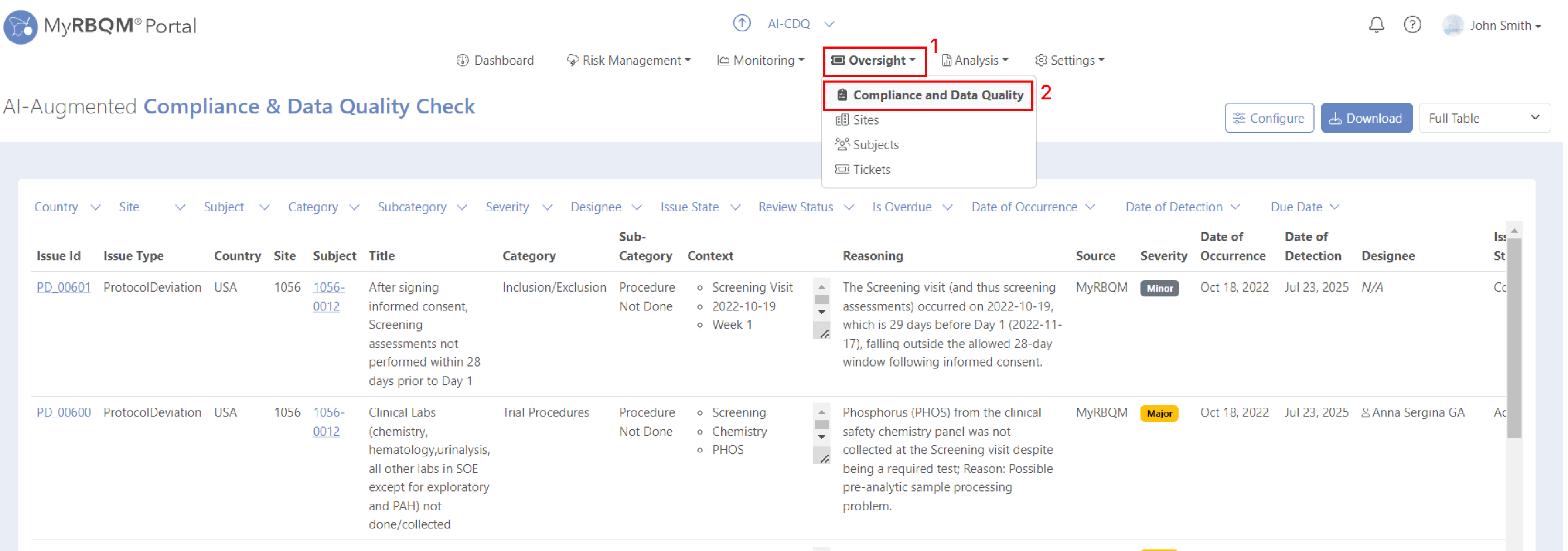
Once the module has been enabled, click on the Oversight menu drop-down item: Compliance & Data Quality, as below.